Introduction
- Remark: The idea of WWW is document sharing
- Main question: How to define the structure of document?
- Text, tables, figures, link, ...
- In 1980s
- Binary formats? Useless
- Different machines, no popular graphical desktops, no such popular format such as PDF, Doc, ...
- Text format
- It is okay, everyone knows ASCII
- But how to describe structure, layout, and formatting?
- Add meaning to each part of text using special predefined markup, E.g., It is heading, It is paragraph, It is table ...
Introduction (Cont.)
- HTML (Hyper Text Markup Language)
- A language to define structure of web docs
- Tags specify the structure
- HTML
- Was defined with SGML (Standard Generalized Markup Language) — until HTML5, which dropped SGML and specifies its own parser
- Is not a programming language
- Cannot be used to describe computations
- HTML does/should not specify presentation
- Font family, style, color, ...
- Cascading Style Sheet (CSS) is responsible for presentation
Introduction (Cont.)
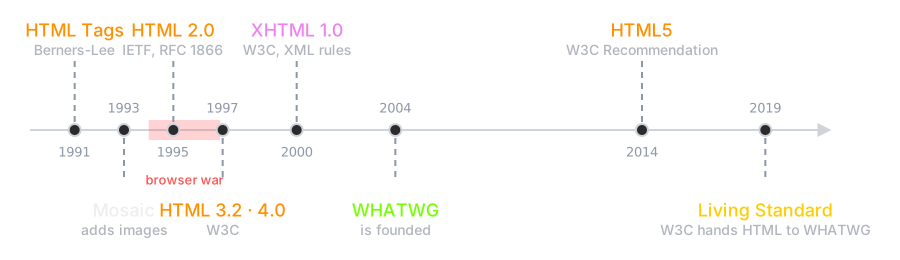
- HTML Tags (Berners-Lee, 1991): very basic, limited integration of multimedia
- 1993, Mosaic added many new features (e.g., integrated images)
- HTML 2.0 (IETF, RFC 1866, 1995): tried to standardize these & other features
- 1994-96, Netscape & IE added many new, divergent features
- HTML 3.2 (W3C, Jan 1997): attempted to unify into a single standard
- HTML 4.0 (W3C, Dec 1997): attempted to map out future direction
- XHTML 1.0 (W3C, 2000): modified to conform to XML standards
- HTML5 (WHATWG + W3C, 2014): supersedes HTML 4.01 and XHTML 1.0
- Since 2019 the W3C has ceded HTML to the WHATWG, and there are no numbered versions any more — HTML is a Living Standard that changes continuously
HTML Basics: Tags
- An HTML document is a text document collecting elements
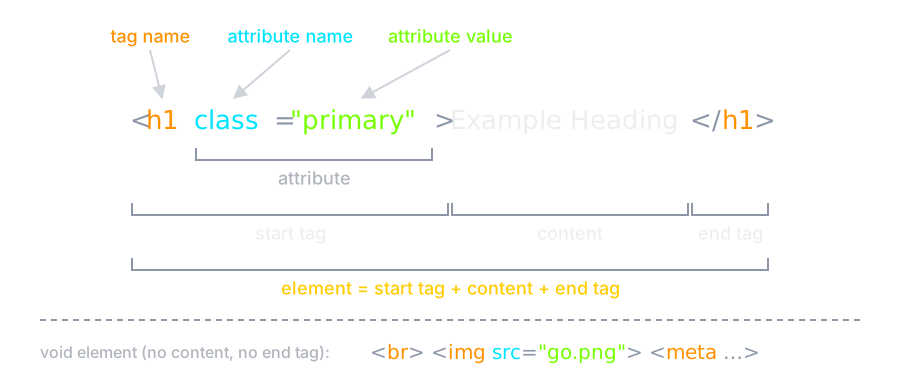
- Element: (usually) a tag pair (opening & closing) + content between them
- E.g., <h1>This is header</h1>
- Not all tags have content
- Tags specify markups for the content
- Tags
- <tagname>: opening (start) tag
- </tagname>: closing (end) tag
- Void elements (<br>, <img>, <meta>, ...) have no content and no closing tag
- <br /> is allowed, but in HTML the
/does nothing — <div /> does not close the div
HTML Basics: Attributes
- Each tag can have some attributes
- Attributes customize tags
<tagname attrib1="setting" attrib2="setting" ...>
...
</tagname>
id: A unique identifier for the element. In HTML5 it may be any non-empty string with no whitespace — the old "must start with a letter" rule was XHTML'sclass: Assign a class to the element, multiple classes are allowedtitle: Specifies extra information about an element- The information is most often shown as a tooltip text when the mouse moves over the element.
HTML Basics: Tag & Attribute & Element
HTML Processing
- HTML is just a text file; How does it work?
- It is processed by applications for a specific purpose!
- Search engine objectives:
- Analyze page, extract elements, prioritize, ranking, ...
- Each tag has meaning, used for ranking
- E.g., paragraphs are not as important as headings
- Web browser objectives:
- Display the document to client
- Rendering
- Generate layout for the document
- Display elements
HTML Processing: Rendering
- The processing of displaying HTML in browser
- Not all tags are to be displayed
- E.g. Tags in <head>
- For tags which should be displayed
- Tags by themselves are not displayed
- Each tag has its own default presentation
- If tag has content, the presentation is applied to content
<em>I am important</em>
I am important
I am a <br /> break
I am a
break
break
HTML Processing: Rendering (Cont.)
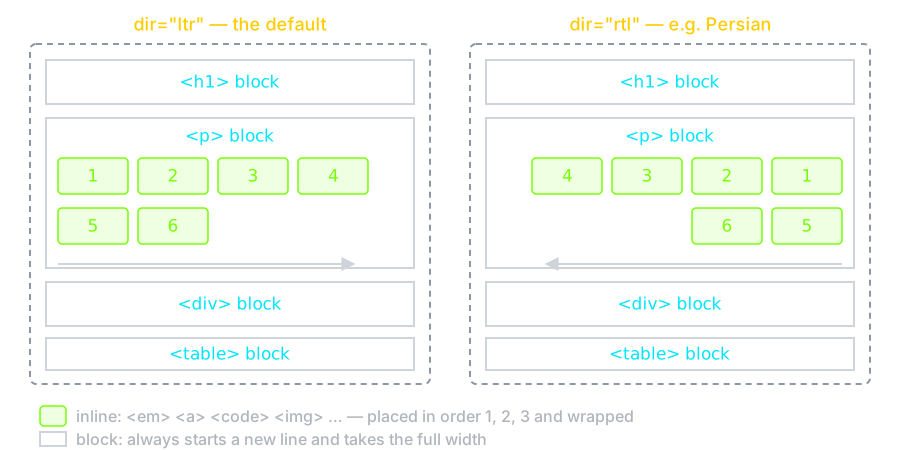
- Web browsers by default start placing elements from left-top corner
- In-line elements are placed from left to right
- A new line is created for each block-level element
- With
dir="rtl"(e.g., Persian) the browser starts from the right-top corner
- Web browsers ignore
- Comments
<!-- ... -->
<blink>still visible</blink>
- E.g., Multiple newlines + tabs + spaces → single space
The “Hello World” Example
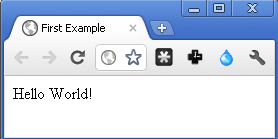
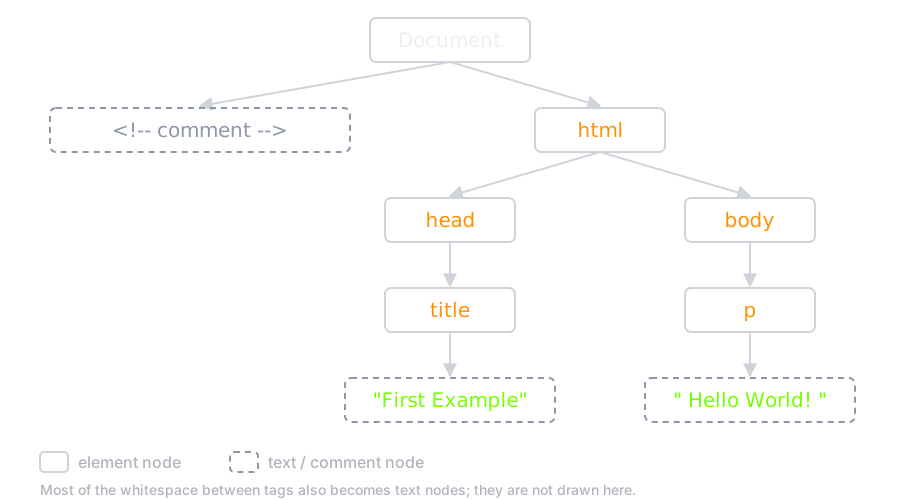
<!-- This is the “Hello World” Example -->
<html>
  <head>
    <title>First Example</title>
  </head>
  <body>
    <p> Hello World! </p>
  </body>
</html>
Nested Tags
- Nested tags make a tree: parent & child relationship
- The browser builds this tree from the text — the DOM (Document Object Model)
Special Characters/Symbols
- Some characters and symbols are encoded
<and&start markup, so they cannot be written directly as text- Others are hard to type, or invisible (non-breaking space)
| Character | Coding | Number code |
|---|---|---|
| < | < | < |
| > | > | > |
| & | & | & |
| ' ' | [1] |   |
| © | © | © |
| λ | λ | λ |
XHTML
- HTML is an application of Standard General Markup Language (SGML)
- XHTML is an application of Extensible Markup Language (XML)
- XML is more restricted than SGML
- XHTML has more restrictions vs. HTML
- XHTML is more well-defined
XHTML Rules (vs. HTML)
- All tags have ending (closing) tags
- Some tags are self-closing
<br />
<strong><em>test</strong></em>
checked="checked", not checked- Layout (styles) are separated from markup
- Markup is used for meaning & structure
- The obsolete HTML
Big Element (
<big>) renders the enclosed text at a font size one level larger than the surrounding text. - The obsolete HTML
Center Element
(
<center>) is a block-level element that displays its block-level or inline contents centered horizontally within its containing element.
Anatomy of an HTML document
<!DOCTYPE html>
<html lang="en">
  <head>
    <meta charset="utf-8">
    <title>My test page</title>
  </head>
  <body>
    <img src="images/firefox-icon.png" alt="My test image">
  </body>
</html>
Anatomy of an HTML document (Cont.)
<!DOCTYPE html> the doctype
- It is required preamble.
- In the mists of time, when HTML was young (around 1991/92), doctypes were meant to act as links to a set of rules that the HTML page had to follow to be considered good HTML, which could mean automatic error checking and other useful things.
- However these days, they don't do much, and are basically just needed to make sure your document behaves correctly.
- That's all you need to know for now.
<html></html>
- This element wraps all the content on the entire page and is sometimes known as the root element.
<head></head>
- This element acts as a container for all the stuff you want to include on the HTML page that isn't the content you are showing to your page's viewers.
- keywords and a page description that you want to appear in search results
- CSS to style our content
- character set declarations
- and more
<meta />
- This element sets the character set your document should use to UTF-8.
- It is a void element: no content, and no closing tag
<title></title>
- This sets the title of your page, which is the title that appears in the browser tab the page is loaded in.
<body></body>
- This contains all the content that you want to show to web users when they visit your page.
HTML elements
- Main root
- Document metadata
- Sectioning root
- Content sectioning
- Text content
- Inline text semantics
- Image and multimedia
- Embedded content
- Scripting
- Table content
- Forms
- Interactive elements
- Web Components
Main root
- The HTML
<html>element represents the root (top-level element) of an HTML document, so it is also referred to as the root element. - All other elements must be descendants of this element.
Sectioning root
- The HTML
<body>Element represents the content of an HTML document. - There can be only one <body> element in a document.
Content sectioning
- Content sectioning elements allow you to organize the document content into logical pieces.
- The HTML
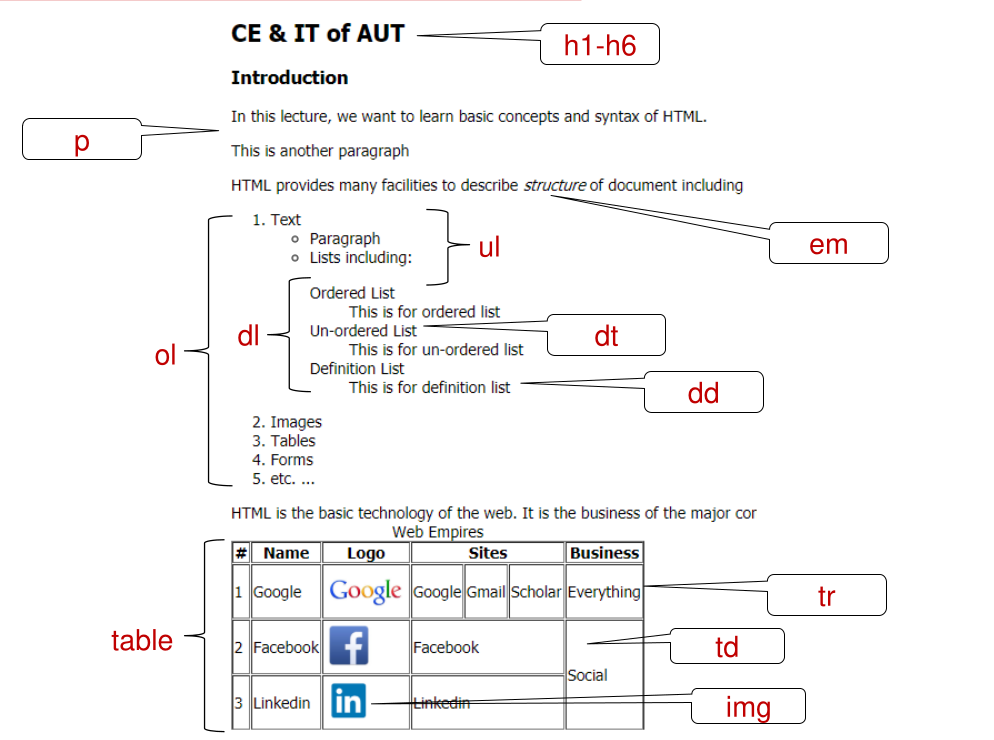
<h1>–<h6>elements represent six levels of section headings.<h1>is the highest section level and<h6>is the lowest. - The HTML
<section>element represents a standalone section — which doesn't have a more specific semantic element to represent it — contained within an HTML document. - Content you are sectioning must have a natural heading within it (for
example
h1-h6).
- The HTML
<footer>element represents a footer for its nearest sectioning content or sectioning root element. A footer typically contains information about the author of the section, copyright data or links to related documents. - The HTML
<header>element represents introductory content, typically a group of introductory or navigational aids. It may contain some heading elements but also a logo, a search form, an author name, and other elements.
- The HTML
<nav>element represents a section of a page whose purpose is to provide navigation links, either within the current document or to other documents. Common examples of navigation sections are menus, tables of contents, and indexes.
- The HTML
<main>element represents the dominant content of the body. A page has only one visible<main>. - The HTML
<article>element represents a self-contained composition that makes sense on its own: a blog post, a news story, a comment, a product card. - The HTML
<aside>element represents content only indirectly related to the main content, often shown as a sidebar.
Text content
- Use HTML text content elements to organize blocks or sections of content
placed between the opening
<body>and closing</body>tags. - The HTML
<p>element represents a paragraph. - The HTML
<pre>element represents preformatted text which is to be presented exactly as written in the HTML file.
- The HTML
<ol>element represents an ordered list of items — typically rendered as a numbered list. - The ordered list uses a specific attribute to define a custom start number. The attribute syntax is start="X", where the X value is the list custom starting number.
- The HTML
<ul>element represents an unordered list of items, typically rendered as a bulleted list. - The HTML
<li>element is used to represent an item in a list. - The HTML
<dl>element represents a description list. - The element encloses a list of groups of terms (specified using the
<dt>element) and descriptions (provided by<dd>elements).
<ul>
  <li>Item 1</li>
  <li>Item 2</li>
</ul>
<ol>
  <li>Item 1</li>
  <li>Item 2</li>
</ol>
<dl>
  <dt>Hello</dt>
  <dd>Means salam</dd>
</dl>
- Item 1
- Item 2
- Item 1
- Item 2
- Hello
- Means salam
- The HTML Content Division element (
<div>) is the generic container for flow content.
Inline text semantics
- Use the HTML inline text semantic to define the meaning, structure, or style of a word, line, or any arbitrary piece of text.
- The HTML
<span>element is a generic inline container for phrasing content, which does not inherently represent anything. - The HTML
<q>element indicates that the enclosed text is a short inline quotation. Most modern browsers implement this by surrounding the text in quotation marks. - The HTML Citation element (
<cite>) is used to describe a reference to a cited creative work, and must include the title of that work.
- The HTML
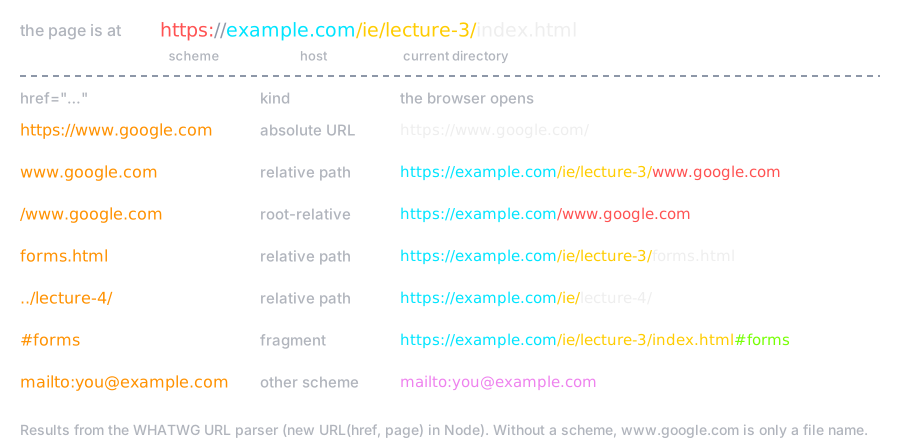
<a>element (or anchor element), with itshrefattribute, creates a hyperlink to web pages, files, email addresses (mailto), locations in the same page (fragment), or anything else a URL can address. - When the scheme is not given in the URL, the browser resolves it
against the address of the current page (or the
<base>in<head>, if set)
- For paths in current domain, similar to filesystem, paths can be
- Root-relative (
/x): Path starts from web server root directory - Relative (
x,../x): Path starts from current directory - Scheme can be every supported protocol
- E.g.
mailtofor sending email - E.g.
javascriptto run code — avoid it, use a<button> - By default links are opened in the same window, to open link in new window
- Attribute target="_blank" (modern
browsers also apply
rel="noopener"to it) - Everything between
<a> </a>is considered as link name - Avoid spaces after
<a>and before</a>
- #frag part in URL is used to jump middle of a large document
- Step one: assign an id to the part
<!-- either of these, not both: an id must be unique -->
<a id="section-result">Results</a>
<h2 id="section-result">Results</h2>
To see result <a href="xyz#section-result">click here</a>
- The HTML
<br>element produces a line break in text (carriage-return). - The HTML
<code>element displays its contents styled in a fashion intended to indicate that the text is a short fragment of computer code. - The HTML
<em>element marks text that has stress emphasis. - The HTML Strong Importance Element (
<strong>) indicates that its contents have strong importance, seriousness, or urgency.
Image and multimedia
- The HTML
<img>element embeds an image into the document. src: address of file (local or remote)alt: alternative text, shown if the image cannot be displayed and read aloud by screen readers- align: alignment of image with respect to text line (deprecated, is controlled by CSS)
<img>is an inline element and has no caption of its own- To caption one, wrap it:
<figure>+<figcaption>
<figure>
  <img src="gopher.png" alt="the Go gopher" />
  <figcaption>The Go gopher, by Renée French</figcaption>
</figure>
- The HTML
<video>and<audio>elements embed media; no plugin (Flash) is needed any more controls: show the play/pause/volume bar of the browser- Several
<source>children: the browser plays the first format it supports
<video controls width="480">
  <source src="lecture.webm" type="video/webm" />
  <source src="lecture.mp4" type="video/mp4" />
  Your browser cannot play this video.
</video>
Embedded content
- The HTML Inline Frame element (
<iframe>) represents a nested browsing context, embedding another HTML page into the current one.
Scripting
- The HTML
<noscript>element defines a section of HTML to be inserted if a script type on the page is unsupported or if scripting is currently turned off in the browser. - The HTML
<script>element is used to embed executable code or data; this is typically used to embed or refer to JavaScript code.
Table content
- Tables are created by
<table> </table> - Each row is created by
<tr> </tr> - Each cell inside a row is created by
<td> </td> - A header cell is created by
<th> </th> - A cell can span:
colspan,rowspan - Block-level element
<table>
  <caption>I am a lonely table</caption>
  <thead>
    <tr>
      <th>Head Col 0</th>
      <th>Head Col 1</th>
    </tr>
  </thead>
  <tbody>
    <tr>
      <td>Row 0 Col 0</td>
      <td>Row 0 Col 1</td>
    </tr>
    <tr>
      <td>Row 1 Col 0</td>
      <td>Row 1 Col 1</td>
    </tr>
  </tbody>
</table>
| Head Col 0 | Head Col 1 |
|---|---|
| Row 0 Col 0 | Row 0 Col 1 |
| Row 1 Col 0 | Row 1 Col 1 |
Forms
- Forms are used to get information from user
- HTML is only responsible to gather the information
- It does not responsible to process
- Data are processed by server side scripts
- However, some preprocessing can also be performed in client side
- As we are going to see, with Javascript we can even use forms' data without any server side processing
- Major form components
- The form element
- Inputs
- Text, Checkboxes, radio buttons, select boxes, etc.
- Buttons
- Submit, cancel, etc.
- Forms are created by
form - Each form should have
actionandmethodattributes actionis a URL- Server side script that process the data
- If omitted, the form is sent to the URL of the current page
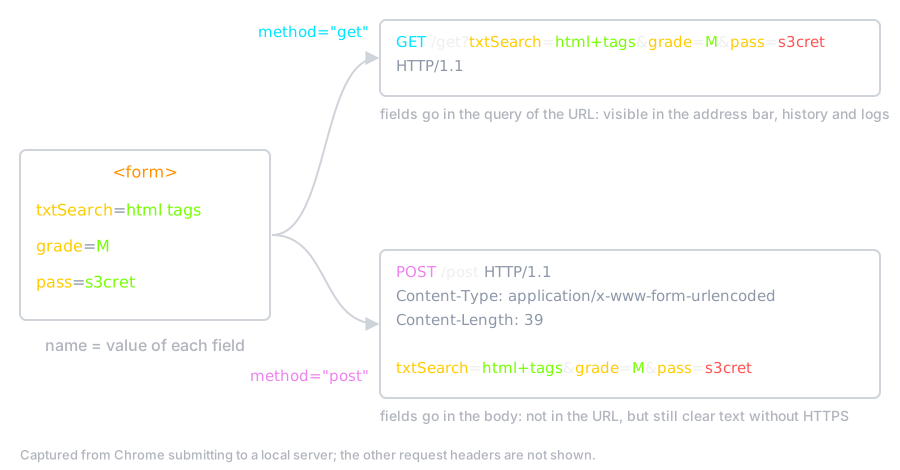
methodis a HTTP method used to send dataget: User input data is sent through the query part of URL by HTTP GET methodpost: User input data is sent as the body of HTTP message by HTTP POST method- If omitted, the method is
get
- A form is composed of
inputelements - Each component has
type,name, andvalueattributes typespecifies the type of componentnameis the name of the componentvalue(except buttons)- If not empty, is the default value
- On submission,
name=value (user input or default) of the components in the form are sent to server (using theactionandmethod: POST, GET) - Server processes the values according to the names
- It must know the names
- Single-line text
type="text"- Password (instead of real input, other character is shown)
type="password"- Multi-line text
- Instead of
<input>, we use<textarea> </textarea> cols&rowsspecifies # of columns & rows- name=value of component is sent to server
- Password in plain text format 😱 — with
getit is even in the URL - Use
post+ HTTPS for a password
<form action="https://httpbin.org/get" method="get">
  Search:
  <input type="text" name="txtSearch" value="" size="20" maxlength="64" />
  <br />
  Password:
  <input type="password" name="pass" value="" size="20" maxlength="64" />
  <br />
  Text:
  <textarea name="inputtext" cols="30" rows="3">
Please enter your message</textarea>
</form>
type="checkbox"- If checked, its name=value is sent to server
- User cannot change/enter value
- The value attribute is needed in some cases
- If not given, it is assumed “on”
- To be checked by default
checked="checked"- To draw border around a group of components
<fieldset> </fieldset>- To assign name to the group
<legend> </legend>
<form action="https://httpbin.org/get" method="get">
  <fieldset>
    <legend><em>Web Development Skills</em></legend>
    <input type="checkbox" name="skill_1" value="html" />
    HTML<br />
    <input type="checkbox" name="skill_2" value="xhtml" checked="checked" />
    XHTML<br />
    <input type="checkbox" name="skill_3" value="css" /> CSS<br />
    <input type="checkbox" name="skill_4" value="JavaScript" />
    JavaScript<br />
    <input type="checkbox" name="skill_5" value="aspnet" />ASP.Net<br />
    <input type="checkbox" name="skill_6" />
    PHP <br />
    <input type="submit" value="Submit" />
  </fieldset>
</form>
type="radio"- Only one of button can be selected in a group of buttons with the same name
- name=value of the selected button is sent
- Again, user cannot change/enter the value
- If the value attribute is missing, the default value is “on”
- The value attribute is (almost always) needed
- The name is the same for all choices
<form action="https://httpbin.org/get" method="get">
  <fieldset>
    <legend>University Grade</legend>
    <input type="radio" name="grade" value="B" /> BS <br />
    <input type="radio" name="grade" value="M" /> MS <br />
    <input type="radio" name="grade" value="P" /> PhD <br />
    <input type="radio" name="grade" value="PD" /> Post Doc <br />
    <input type="submit" value="Submit" />
  </fieldset>
</form>
- Select Boxes has the same functionality of radio buttons
- Created by:
<select name="selname"></select>- Options are given by
<option value="val"> text </option> - selname=val of the selected item is sent to server
- User cannot enter value
- If
valueattribute is omitted, the value is taken from the text content of theoptionelement.
<form action="https://httpbin.org/get" method="get">
  Select color:
  <select name="selColor">
    <option value="r">Red</option>
    <option value="g">Green</option>
    <option value="b">Blue</option>
  </select>
  <input type="submit" value="Submit" />
</form>
- File Input
- In
<input> type="file"accept= A MIME type to specify default acceptable file format- In
<form> method="post"enctype="multipart/form-data"- The type that allows file
<input>element(s) to upload file data.
<form
  action="https://httpbin.org/post"
  method="post"
  enctype="multipart/form-data"
>
  <input type="file" name="fileUpload" accept="image/*" />
  <input type="submit" value="Submit" />
</form>
- Buttons: <button> label </button>
typeThe default behavior of the button. Possible values are:"submit": To submit data to server."reset": To reset all inputs to default values."button": To run client side script.- Inside a form the default is
"submit"— a<button>without a type submits the form - The
nameof the button, submitted as a pair with the button’s value as part of the form data. - Defines the
valueassociated with the button’s name when it’s submitted with the form data.
<form action="https://httpbin.org/get" method="get">
  <input type="text" name="input" value="Default Value" /> <br />
  <button type="submit">Submit Me</button><br />
  <button type="reset">Reset</button> <br />
  <button type="button">Click Me</button> <br />
</form>
- The HTML
<label>element gives an input its caption - Click on the label → the input gets the focus
- Screen readers read the label with the input
- Connect them with
for=idof the input, or put the input inside the label
<label for="email">Email</label>
<input type="email" id="email" name="email" required />

<label><input type="checkbox" name="news" /> Send me news</label>
- More
typevalues: the browser gives a suitable keyboard or picker email,url,tel,number,range,date,color,search- Validation in the browser, before the form is sent
required,min/max,maxlength,pattern- Only for the user experience — the server must validate again, because a client can send any request
tabindex
- The tabindex
global attribute indicates that its
element can be focused, and where it participates in sequential keyboard
navigation (usually with the
Tabkey, hence the name).
Semantic Tags
- Many HTML tags have semantic meaning
- Semantic tags convey some information about the type of content inside them.
- Semantic tags make it clear to the browser what the meaning of a page and its content is.
- They also help search engines, ensuring that the right pages are delivered for the right queries.
Some Semantic Tags
- head
- body
- header
- nav
- main
- section
- article
- aside
- footer
- code
Semantic Tags Example
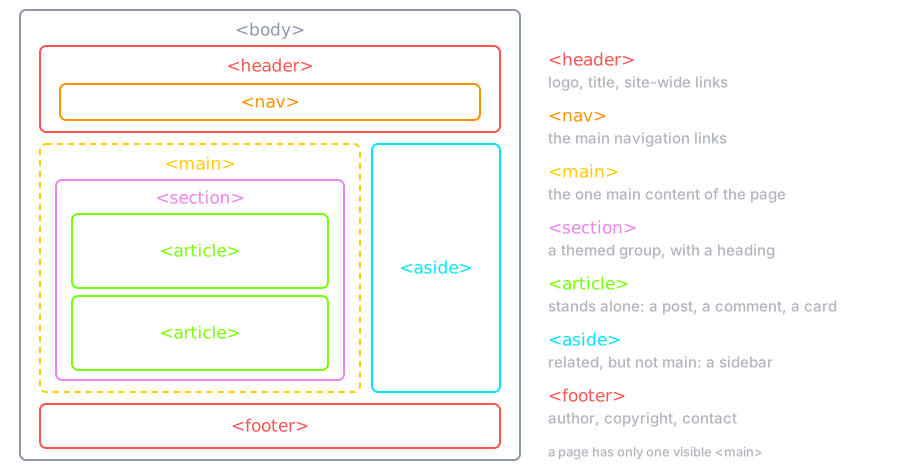
Semantic Tags Example (Cont.)
- The same layout is possible with only
<div>— it looks the same in the browser - The difference is for the machines that read the page
<!-- says nothing -->
<div class="top"><div class="menu">...</div></div>
<div class="content">...</div>

<!-- says what each part is -->
<header><nav>...</nav></header>
<main>...</main>
- Screen readers can jump to
<nav>or<main>; reader mode and search engines find the<article>
Document metadata
- Metadata contains information about the page.
- This includes information about styles, scripts and data to help software (search engines, browsers, etc.) use and render the page.
- Metadata for styles and scripts may be defined in the page or link to another file that has the information.
- The HTML Title element (
<title>) defines the document's title that is shown in a browser's title bar or a page's tab. - The HTML
<style>element contains style information for a document, or part of a document. - The HTML
<base>element specifies the base URL to use for all relative URLs in a document.
- The HTML
<meta>element represents metadata that cannot be represented by other HTML meta-related elements
- If the name attribute is set, the meta element provides document-level metadata, applying to the whole page.
author: the name of the document's author.description: a short and accurate summary of the content of the page. Search engines often show it under the link in the results.generator: the identifier of the software that generated the page.keywords: words relevant to the page's content separated by commas. Google search ignores it (since 2009).
<meta name="description" content="Free Web tutorials">
<meta name="keywords" content="HTML, CSS, JavaScript">
<meta name="author" content="John Doe">
- If the http-equiv attribute is set, the meta element is a pragma directive, providing information equivalent to what can be given by a similarly-named HTTP header.
- Usually is not processed by web-server
- Browser simulates the behavior of the effect of the header
<!-- The number of seconds until the page should redirect to another  -->
<meta http-equiv="refresh" content="3;url=https://www.mozilla.org">
- If the charset attribute is set, the meta element is a charset declaration, giving the character encoding in which the document is encoded.
<meta charset="UTF-8">
<meta itemprop="description" content="my description">
- The viewport meta: put it in every page
- Without it, a mobile browser draws the page about 980px wide and zooms out — the text becomes very small
- With it, the page width is the width of the device; CSS can then adapt the layout (lecture 4)
<meta name="viewport" content="width=device-width, initial-scale=1">
- The HTML External Resource Link element (
<link>) specifies relationships between the current document and an external resource. This element is most commonly used to link to stylesheets, but is also used to establish site icons (both "favicon" style icons and icons for the home screen and apps on mobile devices) among other things.
HTML Remarks
- The HTML source of every page is public (View Source)
- We can find how others do amazing things in web
- Learning by reading the others' codes
- Public is not open source: Copy/Paste is strictly prohibited (copyright)
- HTML is not a programming language
- No compiler or interpreter
- So, what happen if there is an error?
- No error message: the HTML standard defines how to recover, so modern browsers build the same tree
- The recovered tree may not be what you meant — check with a validator
HTML Remarks (Cont.)
- Example: a
<p>cannot contain a<div>, so the parser closes the paragraph early
<!-- what you wrote -->
<p>Hello <div>World</div></p>

<!-- the tree the browser builds -->
<p>Hello </p><div>World</div><p></p>
- Open DevTools (Elements tab) to see the tree the browser built
HTML Development Toolbox
- A rendering software
- Common browsers — try more than one
- A validator: validator.w3.org/nu
- Additional debugging tools
- HTML Debugging
- Browser reads HTML document
- Parses its tree
- Document Object Model (DOM) tree
- Shows how browser interprets your HTML file
- Google Chrome Inspect Element
- Firefox Developer Edition